
Task Bar Cube Steam Cloud: Save Sync & Conflict Help
Understand Task Bar Cube Steam Cloud support, check sync settings, switch PCs carefully, and handle save conflicts without assuming full recovery.

Task Bar Cube Gameplay Walkthrough LONGPLAY 4K 60FPS PC - No Commentary — Velirplay
General game footage used as fallback media. This is not a keyword-specific tutorial or device benchmark; use the cited references for factual claims.
What Steam Cloud Support Actually Confirms
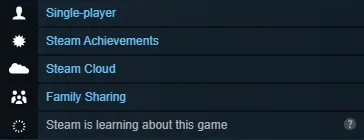
Task Bar Cube Steam Cloud support is listed, but the badge does not tell you exactly which progress follows you to another PC. That distinction matters when your next launch could involve an older local save or an unresolved synchronization conflict. This Task Bar Cube Steam Cloud guide explains what is confirmed, which Steam settings to check, and how to approach missing progress carefully.
The official store lists Steam Cloud for Task Bar Cube, the desktop idle RPG from DarkRook Interactive, Steam app 5084200. However, the reviewed evidence does not identify its synchronized files, save filename, or individual progress fields.
This guide covers the global Windows launch release dated October 25, 2026, using evidence reviewed October 26. No numbered patch or independent gameplay test was verified. The game-specific evidence comes from the official listing and promotional material; the synchronization procedures come from Steam’s platform documentation.
| Question | What the supplied evidence establishes |
|---|---|
| Does the store list Steam Cloud? | Yes, it appears in the game’s feature list. |
| Does every progression system synchronize? | A complete list of synchronized progress is not established. |
| Is a local save location verified? | No game-specific path or filename is supplied. |
| Is native platform support confirmed? | Windows is listed; native macOS and Linux support are not. |
| Does the badge establish Steam Deck compatibility? | No. Cloud support alone does not establish device compatibility. |
Steam explains that developers choose which user files participate in Cloud synchronization. A game can therefore advertise the feature without its store page documenting every included setting or progression system.
For players, the useful distinction is between Cloud availability and confirmed save coverage. The first is established here. The second would require developer documentation identifying the saved data or controlled testing that checks particular progress fields across sessions and computers.
Check Both Steam Cloud Settings
Start troubleshooting Task Bar Cube Steam Cloud by checking the game’s setting and Steam’s global setting. These are platform controls, rather than special options verified inside Task Bar Cube.
Steam places the per-game option under Library → Task Bar Cube → Properties → General. A separate global Cloud setting is available in Steam Settings. Review both before treating a transfer problem as missing game data.
| Check | Where to look | Why it matters |
|---|---|---|
| Per-game Cloud synchronization | Library → Task Bar Cube → Properties → General | Controls synchronization for this game. |
| Global Cloud setting | Steam Settings | Provides a separate client-wide Cloud control. |
| Synchronization warning | Steam’s status or warning for the game | An unresolved warning should be addressed before launching. |
| Offline session history | Your recent sessions and connection status | Offline changes cannot synchronize until reconnection. |
According to Steam Support’s explanation of Steam Cloud settings and conflicts, changes that would normally use Cloud remain local when synchronization is disabled.
That means enabling Cloud on your second computer does not, by itself, prove the first computer uploaded its latest session. Check the machine where you last made the progress you want to retain.
For example, suppose you played on a desktop while synchronization was disabled, then opened the game on a laptop. The desktop’s later progress may still be local. This illustrates Steam’s documented behavior; it is not a tested Task Bar Cube transfer result.
Changing settings also does not reveal the game’s save contents. An enabled toggle confirms your synchronization preference, while successful transfer of specific progress requires separate evidence. Keep those two checks distinct when assessing whether the problem is resolved.
Switch PCs Around Completed Sessions
For Task Bar Cube Steam Cloud transfers, plan around finishing a session and allowing Steam to synchronize. Steamworks documentation describes selected Cloud files synchronizing before and after sessions through developer-configured paths or API integration.
Do not assume the game continuously mirrors every change while it remains open in its compact taskbar window. Dynamic Cloud Sync requires game integration, and the supplied evidence does not establish that Task Bar Cube uses it.
A cautious transfer workflow follows those documented session boundaries:
- Finish playing on the original PC. Note recognizable progress so you can compare it later.
- Exit the game normally. Give Steam an opportunity to perform its post-session synchronization.
- Check Steam’s synchronization status. Address an unable-to-sync warning before moving forward.
- Open Steam on the destination PC. Allow any required synchronization to finish before launching.
- Compare the progress you recognize. If it differs, investigate before continuing a long session.
Useful comparison points include progress you can clearly remember or document, such as the displayed stage or a recent upgrade. Recording those details helps you identify the intended session; it does not establish that those particular fields use Cloud.
Avoid treating a successful launch as confirmation that everything transferred. Starting the application and receiving the intended progress are separate outcomes.
Offline play adds another consideration. Steam’s Offline Mode requires preparation, including an earlier online start and updated game files, and network-dependent Steam features are unavailable offline. Any locally changed Cloud files must wait for reconnection to synchronize.
If your latest session was offline, return to the original computer and review synchronization before assuming the destination PC has that session. Record which computer you used and when; that context becomes valuable if Steam later presents competing versions.
Handle Conflicts and Missing Progress Carefully
A Task Bar Cube Steam Cloud conflict requires a decision about which progress you intend to keep. Neither the word “local” nor “cloud” automatically identifies the correct choice.
Compare timestamps with your actual session history. Ask which computer held the desired progress, whether that session was offline, and whether you launched another session afterward.
| Situation | What to examine | Practical response |
|---|---|---|
| Steam reports it cannot synchronize | Connection status, Cloud settings, and the warning | Resolve the warning before launching. |
| Steam offers local and Cloud versions | Timestamps and the computer used for the intended session | Select the version matching your intended progress. |
| Progress appears older on a new PC | The original PC’s last session and upload status | Investigate whether newer data remains there. |
| A later session occurred after progress disappeared | Whether its timestamp reflects the unwanted state | Interpret the time alongside session context. |
| Installation problems accompany the issue | Installed game files | Use verification for installation checks, separately from save selection. |
A newer timestamp is useful evidence, but it needs context. For example, imagine your desired session ended on the desktop Sunday evening. You then launched the laptop Monday morning and saw older progress. A timestamp associated with Monday’s activity would not, on its own, establish that the version contains Sunday’s desired state.
This is a reasoning example, rather than a documented Task Bar Cube incident. Its purpose is to show why Steam asks players to interpret conflict choices using their own session history.
If progress is missing after changing PCs, the original computer may still contain unsynchronized data. That possibility makes the old machine worth checking before assuming the progress is permanently gone. Recovery is not guaranteed, however, and Steam Support cannot restore missing saves or decide which conflict version represents your intended progress.
For technical investigation, Steam records Cloud activity in cloud_log.txt within its logs directory. This is a platform diagnostic log, not a verified Task Bar Cube save file. It can provide synchronization context without identifying the game’s complete save structure.
File verification has a different purpose. The Steam route is Properties → Installed Files → Verify integrity of game files. It checks the installation; it does not determine the correct Cloud version or guarantee recovery of missing progress or items.
Separate Cloud Saves, AFK Rewards, and Steam Collection
Task Bar Cube Steam Cloud should not be used as an explanation for every inventory or idle-reward question. The supplied promotional material shows several systems, but their presence does not document how their data is stored.
| System or feature | What is supported | What remains unresolved |
|---|---|---|
| Automatic combat | Heroes fight automatically in the desktop idle RPG. | Whether combat-related progress continues with the client closed. |
| AFK Reward panel | A promotional image shows a timer, accumulated rewards, and Collect. | Closed-client accumulation, a universal cap, and Cloud coverage. |
| Steam Collection | Its description says adding an item permanently removes it from Steam inventory and grants a team bonus. | How collection progress is stored or synchronized. |
| In-game Market | A promotional image shows a separate Market panel. | Its data storage and recovery behavior. |
The AFK timer pictured in the official screenshot is a sample account display. It does not establish an offline earning rate, prove that rewards accumulate after closing the client, or show that pending rewards transfer through Cloud.
Likewise, Steam’s Offline Mode and a game’s offline earnings are different subjects. The platform documentation explains client connectivity requirements, while reward behavior needs game-specific evidence.
Steam Collection deserves particular attention because its advertised item removal is permanent. The screenshot describes consuming a Steam inventory item to strengthen the team. A Cloud badge does not establish a way to reverse that transaction or recover the consumed item.
If you report a problem, describe the affected system precisely. “My stage differs between PCs,” “my AFK reward display changed,” and “an item disappeared after collection” identify different symptoms. Include the computer used, session timing, and any synchronization warning so the report can be assessed against the correct system.
What should you read next?
Continue with the AFK and offline rewards guide. The game includes AFK rewards, but the supplied evidence does not establish a universal offline earnings formula or every condition for closed-game progress.
Continue with the Windows system requirements. Compare your Windows computer with the minimum specifications published on the official Steam listing.
Continue with the known issues overview. Launch reports cover missing Steam chests, Battle Pass allowances, promotional interruptions, combat effects, rankings, and characters staying at level one.
FAQ
Does Task Bar Cube Steam Cloud save all my progress?
Where is the Task Bar Cube save file?
Will verifying game files restore a missing save?
Does Task Bar Cube Steam Cloud support Steam Deck or cross-platform saves?
Related Articles
items
Task Bar Cube Steam Market Guide: Eligibility, Fees & Sales
Check Task Bar Cube item eligibility, Steam Market restrictions, selling steps, and fees before confirming your Steam Wallet proceeds.
progression
Task Bar Cube Gold Farming: Upgrades, Sales & AFK Rewards
Compare enemy gold upgrades, gear sales, AFK rewards, quests, and advertised bonuses while protecting equipment you need for progression.
progression
Task Bar Cube Offline Progress: AFK Rewards & Time Limits
Understand Task Bar Cube offline progress, advertised AFK bonuses, Steam chest limits, and how to check what advances after closing the game.
Was this helpful?
Thanks for the feedback!