
Task Bar Cube System Requirements & Windows Setup
Compare Task Bar Cube system requirements, check your PC specs, understand the 2 GB storage figure, and follow Steam file-verification steps.
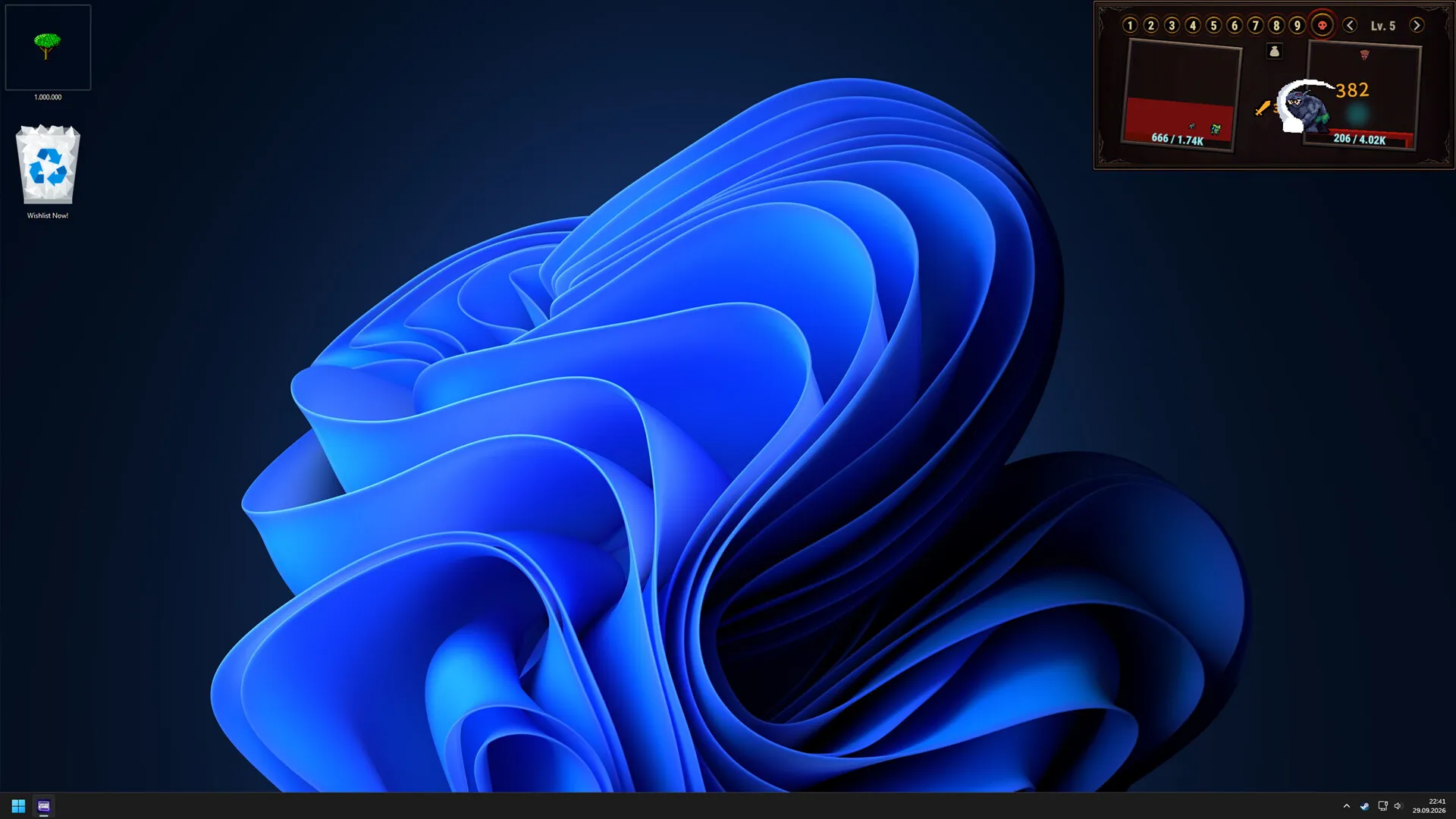

Task Bar Cube Gameplay Walkthrough LONGPLAY 4K 60FPS PC - No Commentary — Velirplay
General game footage used as fallback media. This is not a keyword-specific tutorial or device benchmark; use the cited references for factual claims.
Task Bar Cube system requirements at a glance
A small game window is still worth a hardware check before you install. Task Bar Cube system requirements list Windows 10, an Intel Core i3, 1 GB of RAM, a GeForce GT 730, and 2 GB of available storage as the minimum. Comparing Task Bar Cube system requirements with your PC helps you separate a hardware question from a disk-space or installation problem.
The published minimum and recommended specifications are:
| Component | Minimum | Recommended |
|---|---|---|
| Operating system | Windows 10 | Windows 10 |
| Processor | Intel Core i3; exact model unspecified | Intel Core i3-2120 |
| Memory | 1 GB RAM | 1 GB RAM |
| Graphics | Nvidia GeForce GT 730 | Nvidia GeForce GT 740 |
| Storage | 2 GB available space | 2 GB available space |
These Task Bar Cube system requirements cover the October 25, 2026 Steam launch release, reviewed October 26; no numbered patch is verified. Steam lists a native Windows version and no native Mac or Linux version, which does not establish results with compatibility software. Both requirements columns specify Windows 10. Windows 11 has no explicit requirements row, so the evidence establishes neither confirmed support nor incompatibility. No Steam Deck test was verified for this guide. See the official Task Bar Cube Steam listing.
What the processor, RAM, and storage entries mean
Task Bar Cube system requirements have identical operating-system, memory, and storage entries in both columns. The processor wording and graphics-card model change. Reading each component separately gives you a more accurate comparison than assuming every recommended specification represents a larger number.
The minimum processor model is unspecified. The minimum entry names Intel Core i3 without identifying a particular model. The recommended entry specifically names Intel Core i3-2120. Preserve that distinction when checking your computer: replacing the minimum entry with i3-2120 would make the published requirements more specific than they actually are.
If your processor has a different model name, record that complete name before seeking a comparison. The published requirements do not provide a list of equivalent processors, so they cannot settle every hardware match by themselves.
Both memory entries are 1 GB RAM. That is the published requirement, rather than a measurement of how much memory the game uses throughout a session. It also does not describe the combined needs of your operating system and every application you keep open.
The memory and storage figures answer different questions:
| Published figure | What it describes | What it does not establish |
|---|---|---|
| 1 GB RAM | The listed memory requirement in both columns | Measured memory consumption during play |
| 2 GB available storage | Space available on the installation drive | Total capacity of that drive |
| No download-size figure verified | The evidence leaves download size unspecified | A confirmed 2 GB download |
The 2 GB entry means available storage. Compare it with free space on the drive where you intend to install the game. Checking another drive, or reading the drive’s total capacity, does not answer that question.
A computer can satisfy the listed RAM figure while lacking the required available storage. Likewise, having enough disk space tells you nothing about whether its graphics hardware matches the listing. Keep those checks separate, and avoid using the storage requirement to calculate a download time: the reviewed sources do not establish the download size.
Check your computer against the published specifications
To compare Task Bar Cube system requirements with your device, collect the exact processor name, installed RAM, graphics model, operating-system details, and available storage. A general description such as “office laptop” leaves too much unresolved.
Microsoft’s generic device-information procedure begins by right-clicking Start, choosing Settings, and opening System → About. That page contains both device information and Windows specifications.
| Information to check | Settings location | Detail to record |
|---|---|---|
| Processor and installed RAM | System → About → Device specifications | Complete processor name and installed memory |
| System type | System → About → Device specifications | The displayed system type |
| Windows edition and version | System → About → Windows specifications | Edition and version |
| Disk space | System → Storage | Available space on the intended installation drive |
If you need to inspect another drive, Microsoft’s guidance points to Advanced storage settings → Storage used on other drives. Use the drive you plan to select for the installation when comparing available space with the 2 GB requirement.
Copy the processor name accurately, including its model designation. This matters because the recommended specification identifies i3-2120, while the minimum simply says Intel Core i3. Recording the full name keeps that uncertainty visible instead of turning a partial match into a compatibility guarantee.
You also need your graphics model for the GT 730 or GT 740 comparison. The processor and RAM checks above do not establish which graphics hardware your computer uses. The published requirements do not identify an integrated-graphics equivalent, so additional RAM alone cannot resolve an uncertain graphics comparison.
Keep a short record of your findings before installing. For each component, distinguish a direct match with the published entry from a different model that needs further comparison. This record is also useful if you later need help explaining an installation or launch problem.
Set realistic expectations for taskbar mode
Task Bar Cube system requirements still matter when the game occupies its small taskbar window. The game is an idle RPG/clicker with automatic hero battles and a full-screen option. The official listing does not provide separate hardware requirements for those two display modes.
Window size describes how the game occupies your desktop. Establishing resource consumption would require separate measurements. Automatic combat likewise describes gameplay; it does not provide a measured processor load or establish how the game will behave beside your usual applications.
If you plan to keep the game open while doing other things, assess that complete workflow on your own computer. The published specifications do not quantify the combined demands of the game and your other programs.
The recommended column also comes without a supplied performance benchmark. Use it as a hardware reference, and keep observations specific when describing your results: whether the game launches, whether its window displays correctly, and whether a problem appears during a particular action. Those details are more useful for troubleshooting than a broad claim that the computer should handle it.
Troubleshoot installation and launch problems
Task Bar Cube system requirements help you compare hardware, while Steam’s file-verification procedure addresses the installed files. If content appears to be missing or the game crashes, verification is a documented general troubleshooting step.
Steam’s support guidance follows this sequence:
| Step | Action |
|---|---|
| 1 | Restart your computer and Steam |
| 2 | Find the game in your Steam Library |
| 3 | Right-click the game, or use its gear icon, and open Properties |
| 4 | Select Installed Files |
| 5 | Choose Verify integrity of game files |
Verification may take several minutes. Steam advises against running it alongside other system-intensive processes or verifying several games simultaneously. Let the check finish before recording its result or deciding whether the original problem remains.
This procedure is generic Steam guidance. The reviewed sources do not establish it as a tested fix for a particular Task Bar Cube defect, and completing verification does not certify that every hardware component meets the requirements.
Before requesting help, describe where the failure occurs. A download that does not complete, an installation problem, and a crash after opening the game are different observations. Record the stage you actually reached rather than assuming a cause from the symptom.
A useful report includes:
- Problem stage: downloading, installing, launching, or playing.
- Exact message: copy any error text as it appears.
- Device specifications: processor, installed RAM, graphics model, and system type.
- Operating-system details: Windows edition and version.
- Storage check: intended installation drive and its available space.
- Troubleshooting result: whether you restarted and completed file verification, plus what happened afterward.
These details let someone compare the published requirements with your actual configuration and understand what you have already checked. For example, reporting that verification completed but the same launch error remained communicates a clear result without assigning an unsupported cause.
Keep hardware comparisons and troubleshooting observations together in the report, but state each precisely. An uncertain processor comparison remains uncertain after file verification. Conversely, a computer that matches the listed components can still need an installation check. Neither observation, by itself, identifies the source of a failure.
What should you read next?
Continue with the beginner guide. Start by watching automatic combat, inspecting one affordable upgrade, and comparing what changes.
Continue with the Steam Cloud save guide. Steam Cloud support concerns save synchronization, which is separate from AFK earnings and Steam chest delivery.
Continue with the known issues overview. Launch reports cover missing Steam chests, Battle Pass allowances, promotional interruptions, combat effects, rankings, and characters staying at level one.
FAQ
How much RAM do Task Bar Cube system requirements list?
Is the 2 GB figure the download size?
Does the minimum processor have to be an Intel Core i3-2120?
Will verifying Steam files fix every crash?
Related Articles
guide
Task Bar Cube Achievements: Goals & Milestone Tracking
Track 26 verified Task Bar Cube achievement goals, compare milestones, and distinguish Steam unlocks from daily quests and in-game rewards.
guide
Task Bar Cube Beginner Guide: Heroes, Gear & First Goals
Learn how heroes, pets, gear, village resources, Prestige, and optional packs fit together in Task Bar Cube, with practical first-session checks.
guide
Task Bar Cube Walkthrough: Early Story Goals & Rewards
Follow Task Bar Cube's pictured early story targets, check rewards, and separate chapter progress from daily quests and achievements.
Was this helpful?
Thanks for the feedback!